Only a few weeks ago we told you what was new at the start of autumn, and we haven't stopped since. This time the star is selling: online works as it always has, but now you can also sell in person, at a 3D printing event, at a market or at your workshop's counter. Here are the highlights.
Let's start with the best part: what changes how you sell
1. Sell services and material too, not just what you print
Not everything you charge for comes out of the printer. Products now has a tab for each thing you sell: 3D products · Services · Filaments · Resins · Supplies.
| What | How it's sold |
|---|---|
| Services | Custom design, post-processing, assembly… whatever you offer, by the hour or at a fixed price. |
| Filaments, resins and supplies | The ones in your Inventory, with their price. When you sell them, they come off your stock automatically. |
Everything is added the same way to orders, quotes and the point of sale, and you can tag it like any product.
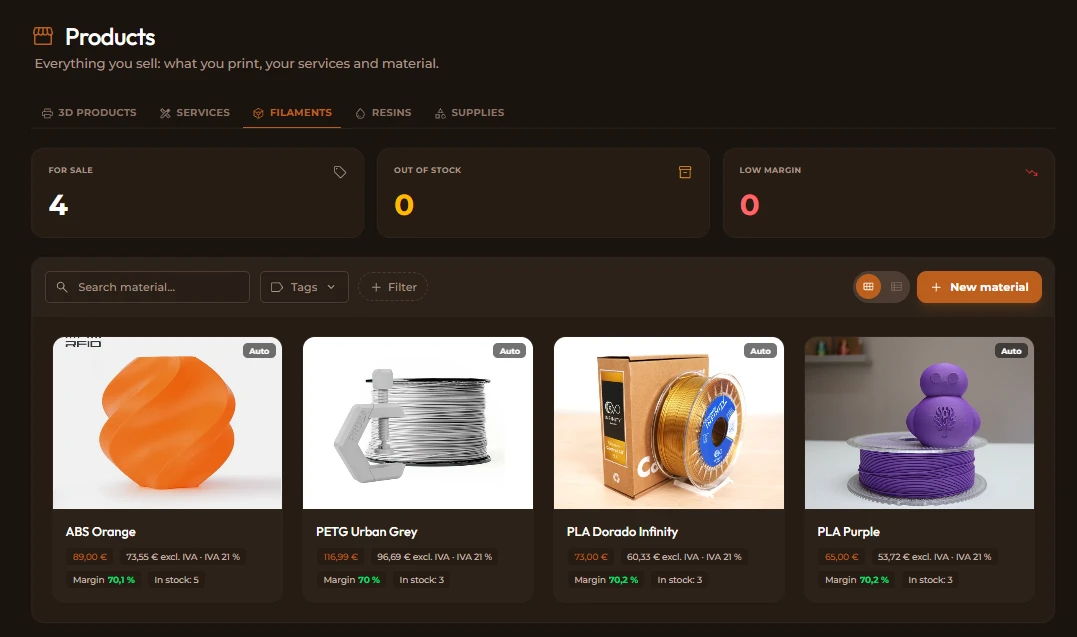
See services · See material for sale
2. Point of sale: sell in person
A new add-on designed for maker markets, 3D printing events or your workshop's counter. Sell straight from what you have in your inventory (3D prints, filaments, supplies…).
- Add the products, apply a discount and take payment by cash, card, Bizum or bank transfer.
- Each sale is created as an order that's already paid and delivered.
- If you're paid in cash, enter how much you're given and BolloPrint works out the change.
- If you sell something that isn't in your catalogue, you can make a "Custom sale".
- Use the "Day summary" to close the day.
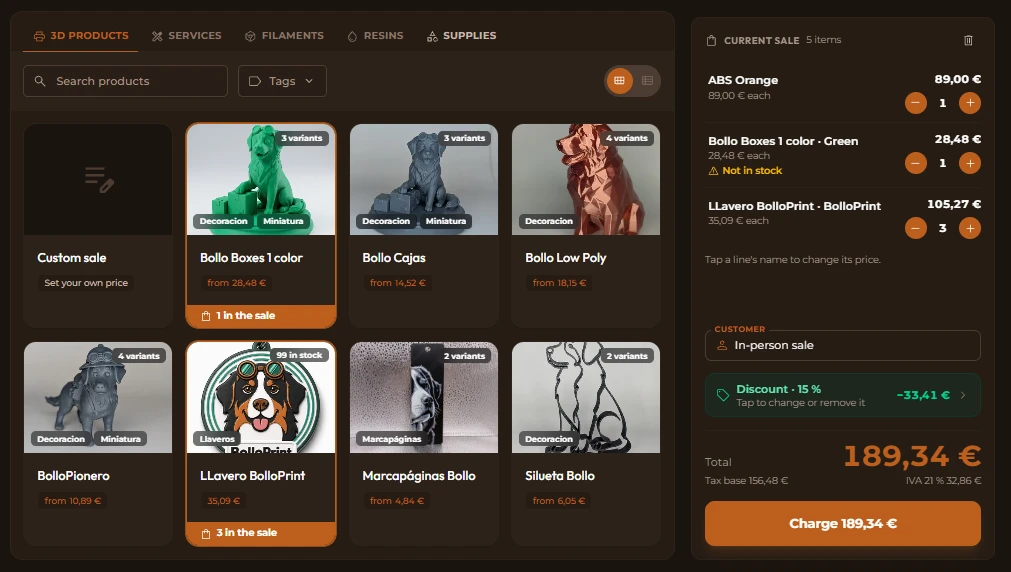
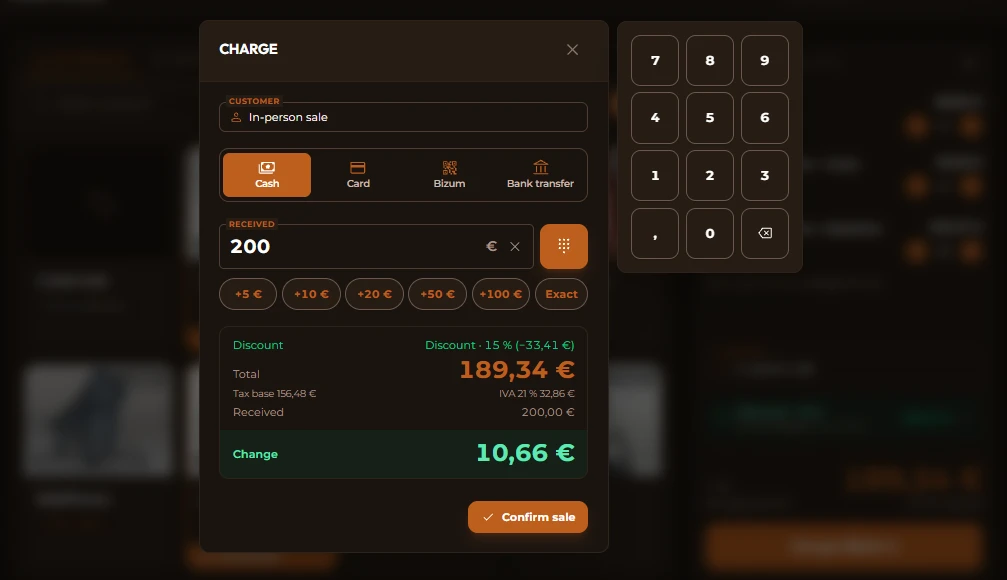
The point of sale records how you were paid, but it doesn't take the payment for you: you still use your own card reader. Available on the Pro and Max plans.
3. Events: prepare, sell at and close your markets
Before you set off, you prepare what you're taking: you take the pieces out of your stock or print them for the occasion. During the event, the point of sale shows you what you have to hand and what stayed at home: "4 here · 5 at the workshop".
When you close the event you see what it made you: what you sold, your expenses, your profit and what didn't come back. Whatever you didn't sell goes back to your stock automatically.
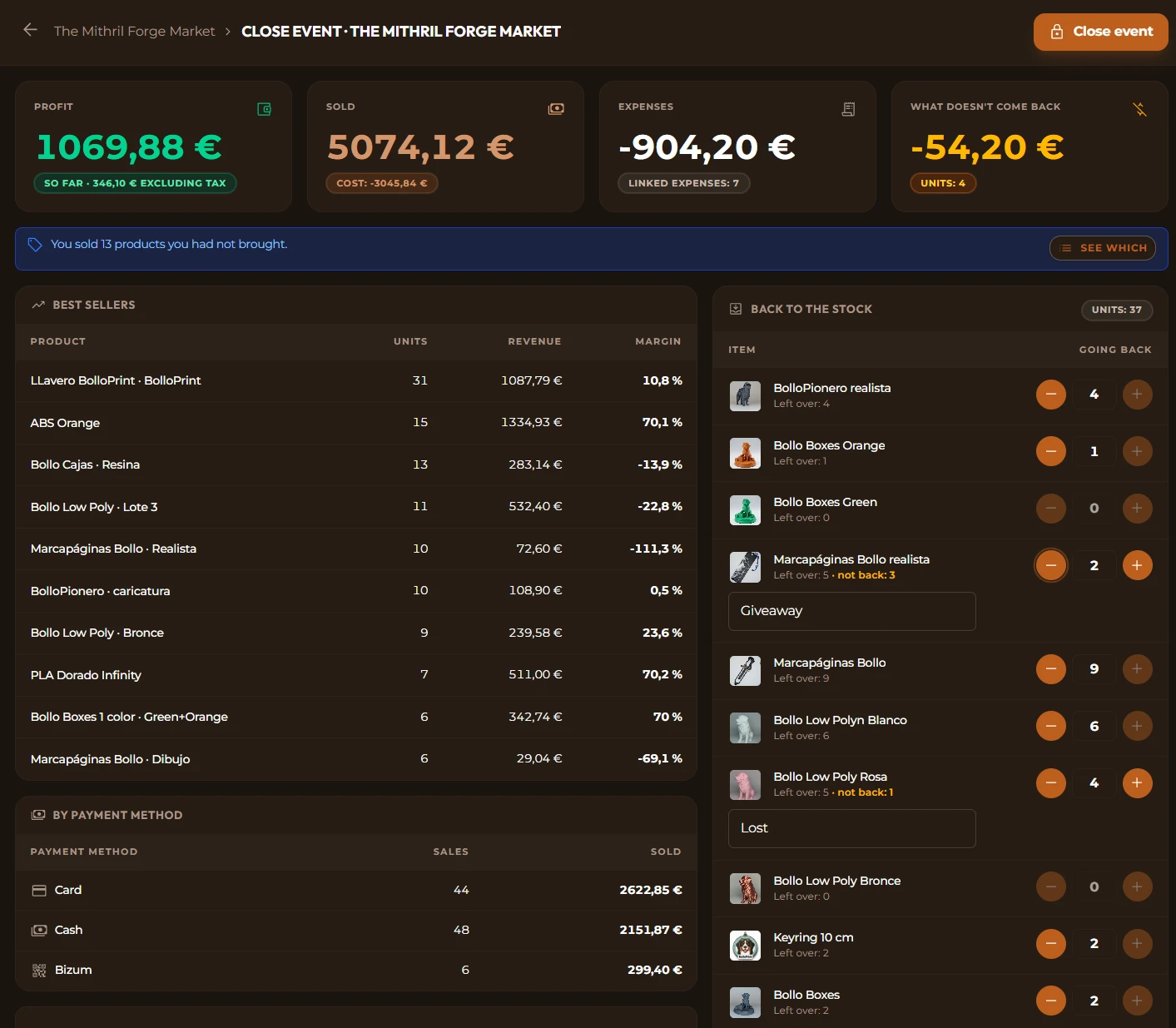
Switch it on in Settings → Extensions → Add-ons. It goes hand in hand with the point of sale: switching on Events switches on both. Available on the Pro and Max plans. See events
4. Price calculator
How much should I charge for this? Upload the slicer file (or type the details in yourself) and the calculator adds up what it costs you and suggests a price using your margins for each type of material. No separate spreadsheets.
When you're happy with it, from the same result you create a quote, a product or a design.
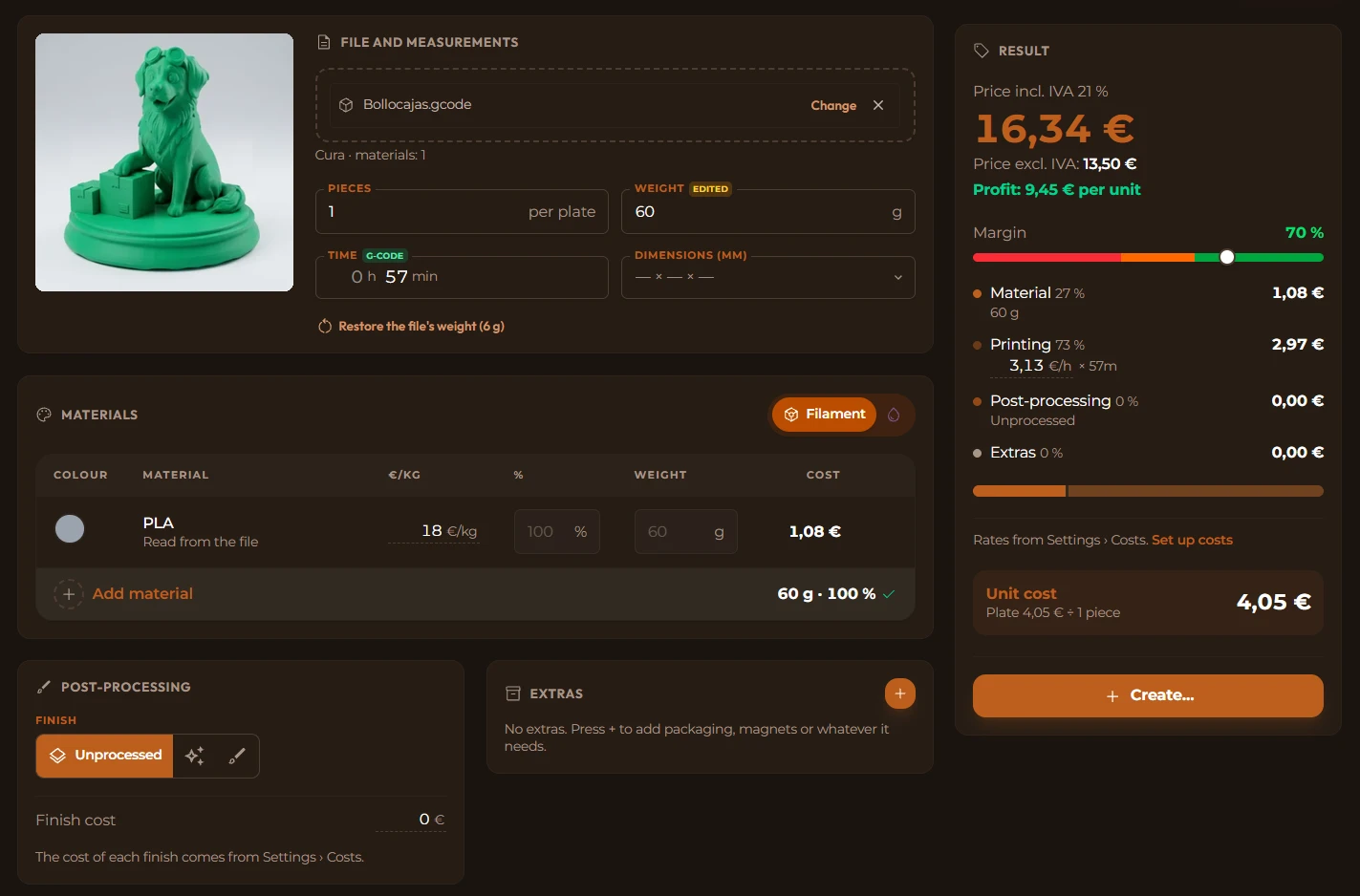
It's an add-on on every plan, Hobby included. See the calculator
5. Add-ons: switch on only what you need
The point of sale, events and the calculator are add-ons: they don't come switched on. You turn them on when you need them, and your menu stays tidy in the meantime. If one day you stop using them, you switch them off and nothing is deleted: when you switch them back on, everything is just as you left it.
There you'll also see the add-ons we're working on, under "Coming soon". If one interests you, press "I'm interested": it helps us decide what to build first.
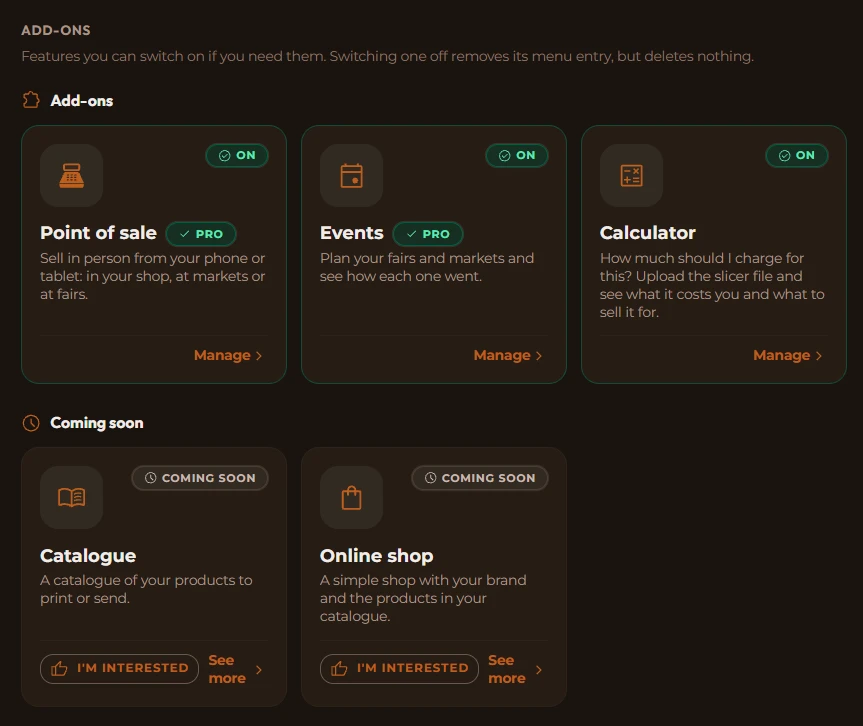
You'll find them in Settings → Extensions → Add-ons. The Owner or an Administrator switches them on. See add-ons
6. Stock moves by itself with your orders
When you create, cancel or change an order or an event, BolloPrint shows you what comes out of your inventory (pieces and material) and asks whether you take it from your stock or print it. 3D products deduct their pieces. Orders that come in from your online shops ask you when you open them.
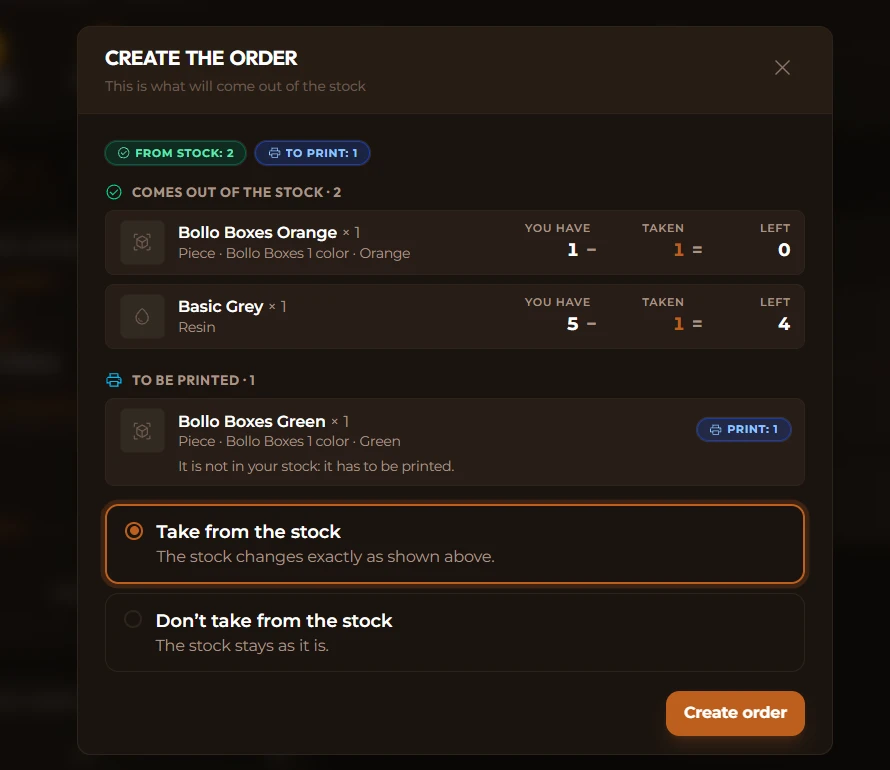
And Inventory has a new tab, "History": see what changed, when, why and who did it.
7. Your printer's SD card, from BolloPrint
On the printer's page, the "Storage" button shows you what the machine keeps on its SD card, its USB stick or its internal memory: each print with its timelapse, its recording and its file, plus a file browser to download whatever you want. Nothing is deleted or changed on the printer. Printers also has a "History" tab.
Today it works with Bambu Lab printers, printers running Klipper, the Snapmaker U1 and the Elegoo Saturn 4 Ultra 16K, connected through the local agent.
8. Payments on the order and a Cash book
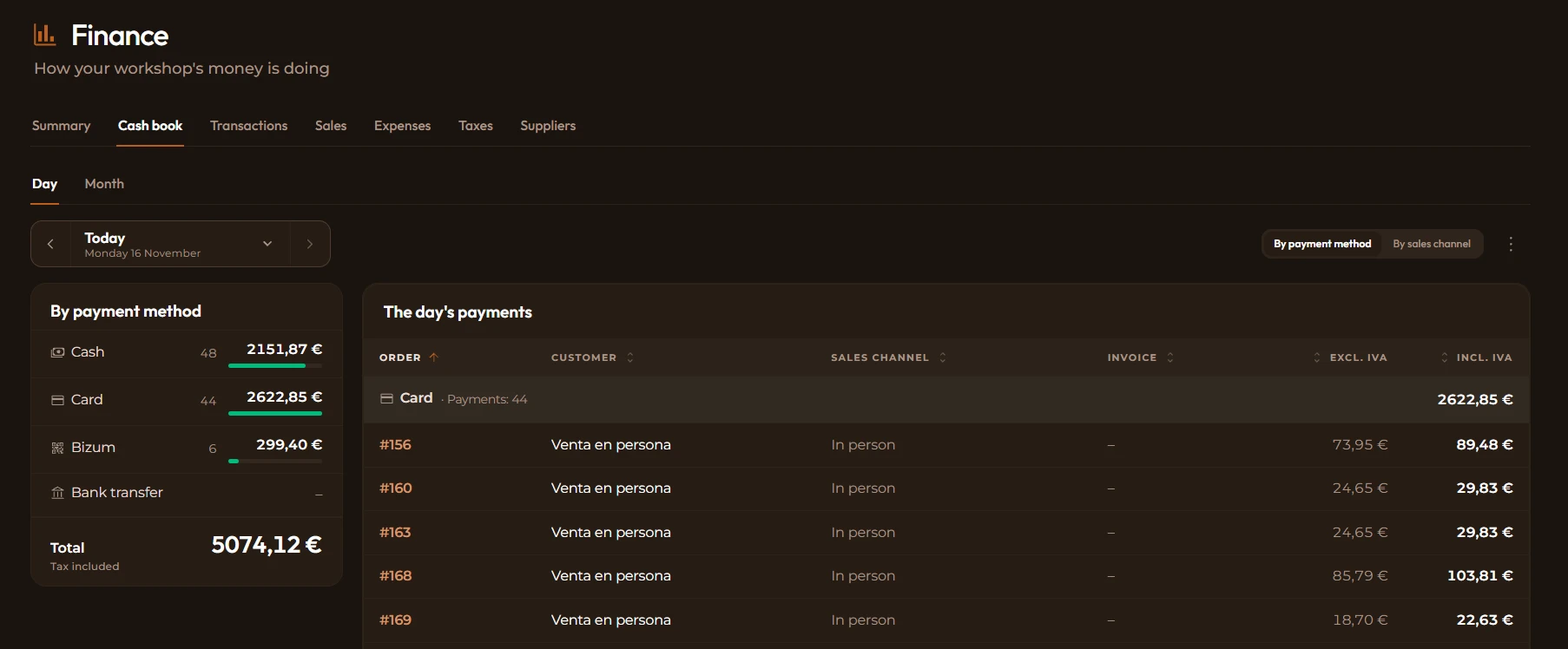
Each order records how much has been collected, when and how. It takes part payments (a deposit, for example) and has a "Collect the rest" button. And if you mark an invoice as paid, the payment is recorded on its order.
In Finance, the new Cash book shows what you collected each day and each month, by payment method or by sales channel. It exports to Excel or PDF, ready for your accountant. Available on the Pro and Max plans.
9. A clearer Finance
- Every figure includes tax and shipping, just like your orders.
- Transactions has filters and totals, and you can look at a single day.
- Sales fits on one card: what you sell (3D products, services and material), your sales channels with their commission and your best customers.
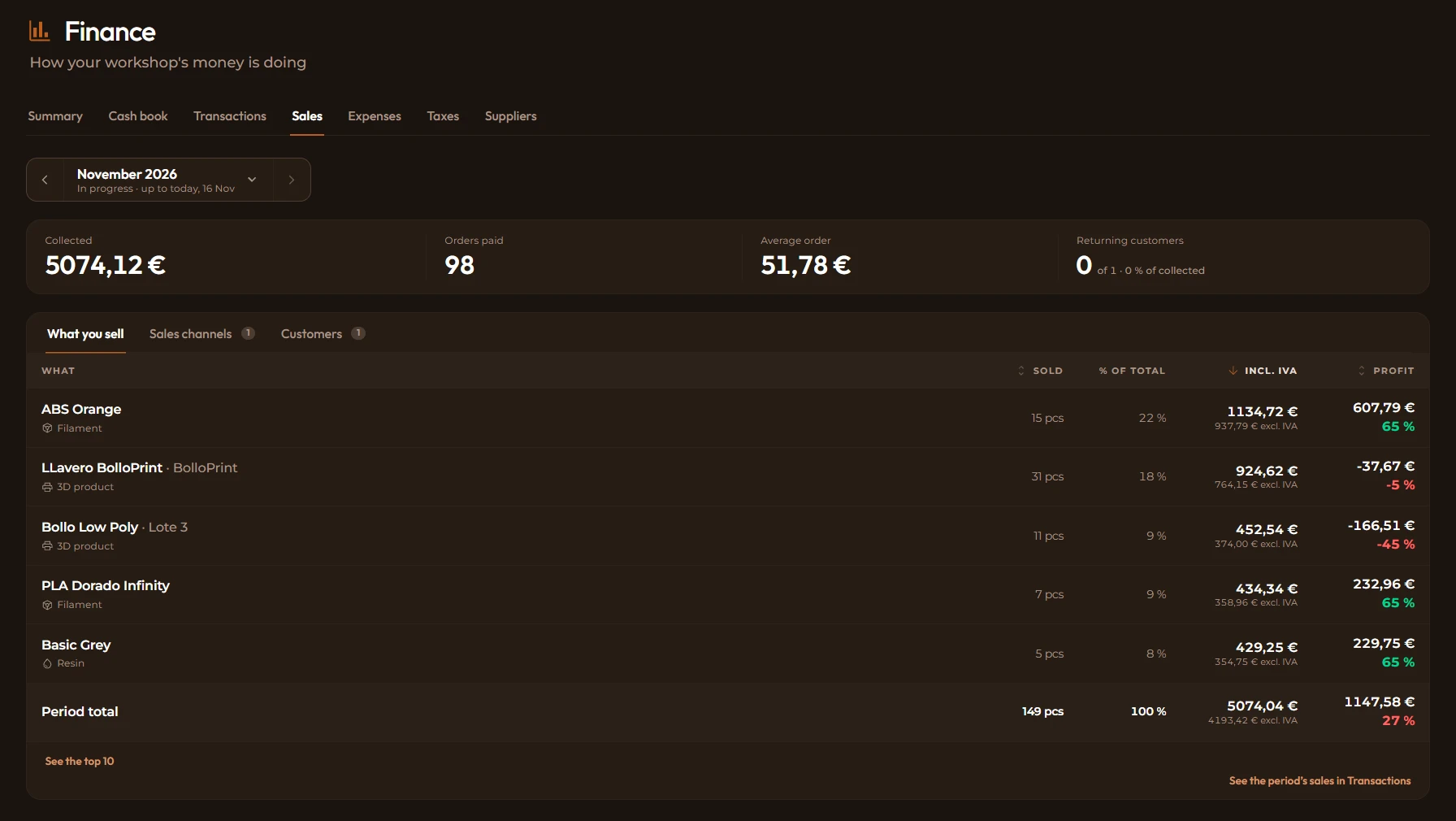
Summary and Transactions are available on every plan. Sales, Expenses, Suppliers, Taxes and Cash book are available on the Pro or Max plans. See Finance
Is something missing?
A lot of what you see here came from your feedback. If you have an idea or a suggestion, tell us at info@bolloprint.com or on our Discord channel. We read everything.
If you want more detail on how it works, it's all in the manual.
We're not stopping: we keep working every day to make BolloPrint the best tool for your 3D printing workshop.
More news soon!