If you have several Bambu printers running, you probably know the routine: to see how they're getting on, you walk over to each one and look at its screen. Has the first one finished? Has the second still got material? How many hours have you printed this month?
You can have all of that on a single screen, and there's nothing to install. You connect your Bambu Lab account to BolloPrint and your printers show up on their own. It takes about five minutes.
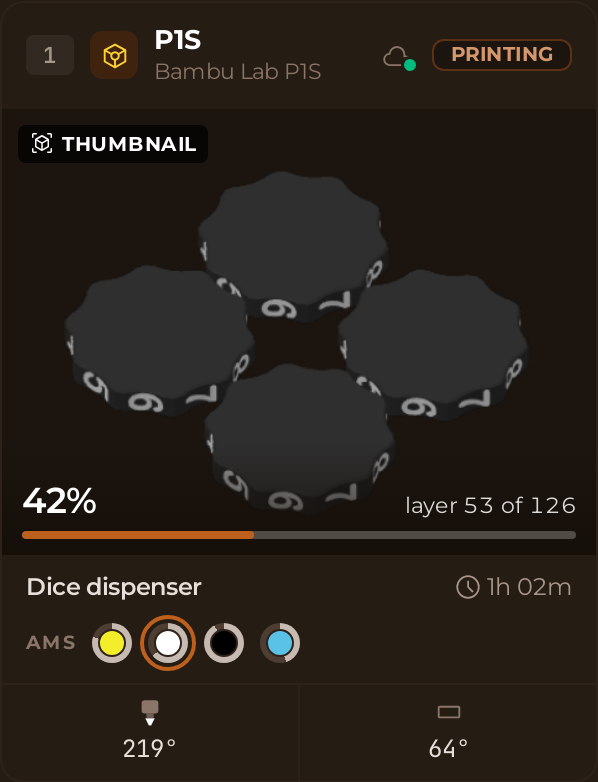
What you'll see for each printer
Live, and without touching a thing:
- whether it's switched on and connected;
- what it's printing, the percentage done and how long it has left;
- the nozzle and bed temperatures;
- the materials loaded, tray by tray, if you have an AMS;
- the machine's own alerts.
And the part you'll notice most at the end of the month: every print gets logged, with its duration, its material and its cost. You don't have to write anything down.
What you need
Before you start, have these three things to hand:
- Access to BolloPrint as an Owner or Admin. With any other role, this screen doesn't appear.
- The email for your Bambu Lab account. You don't need the password.
- That inbox open: Bambu will send you a code.
Open the printers screen
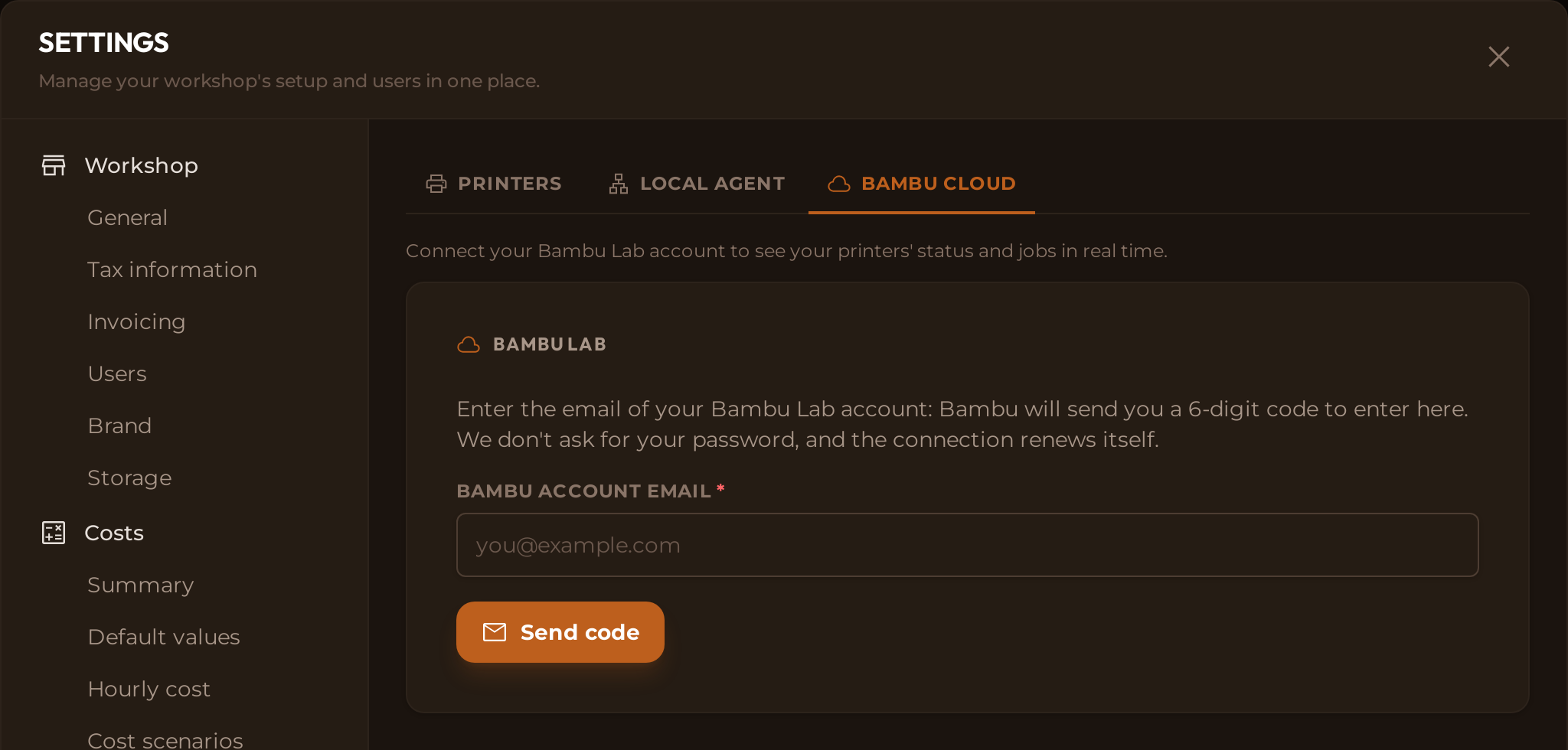
Everything is done from one place: Settings → Printers. There you'll see three tabs:
- Printers: the list of all your machines, however they're connected.
- Local agent: for connecting them over your own network. We explain it in another article.
- Bambu Cloud: the one you need now.
Open Bambu Cloud.
Enter your Bambu account email
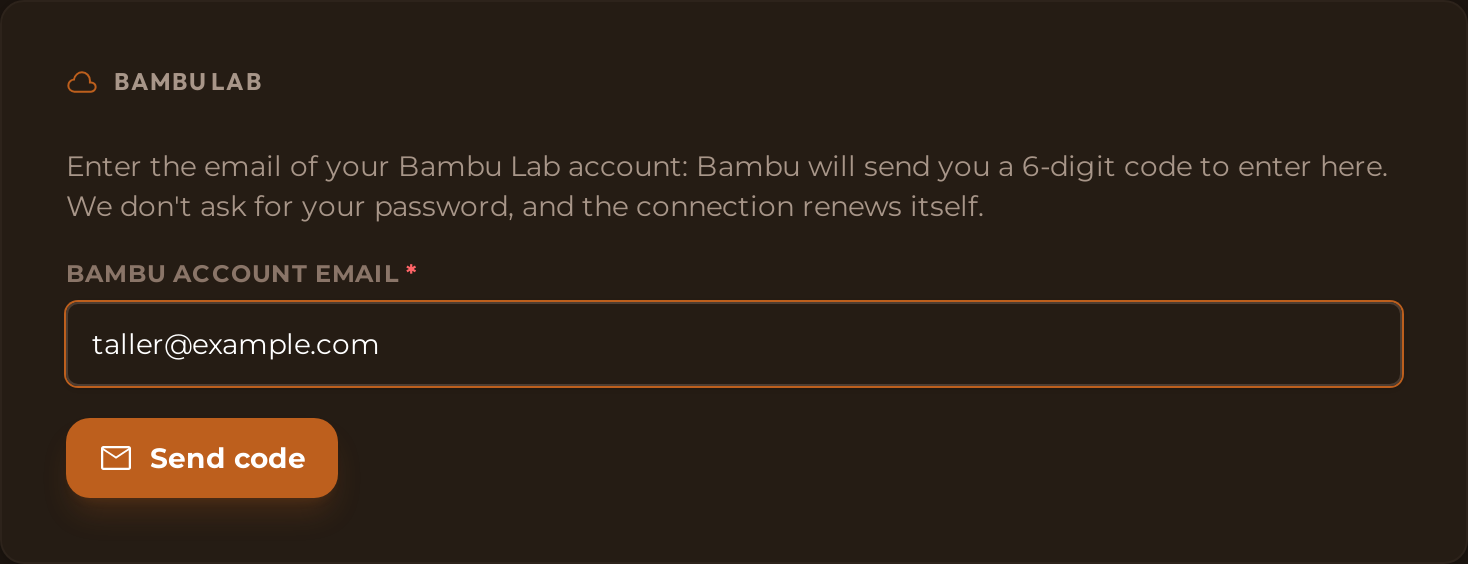
Use the one for your Bambu Lab account (that email, not another one of yours) and click Send code.
💡 We don't ask for your password
BolloPrint never sees or stores it: to connect, all you need is the code Bambu sends to your email.
Confirm the code from the email
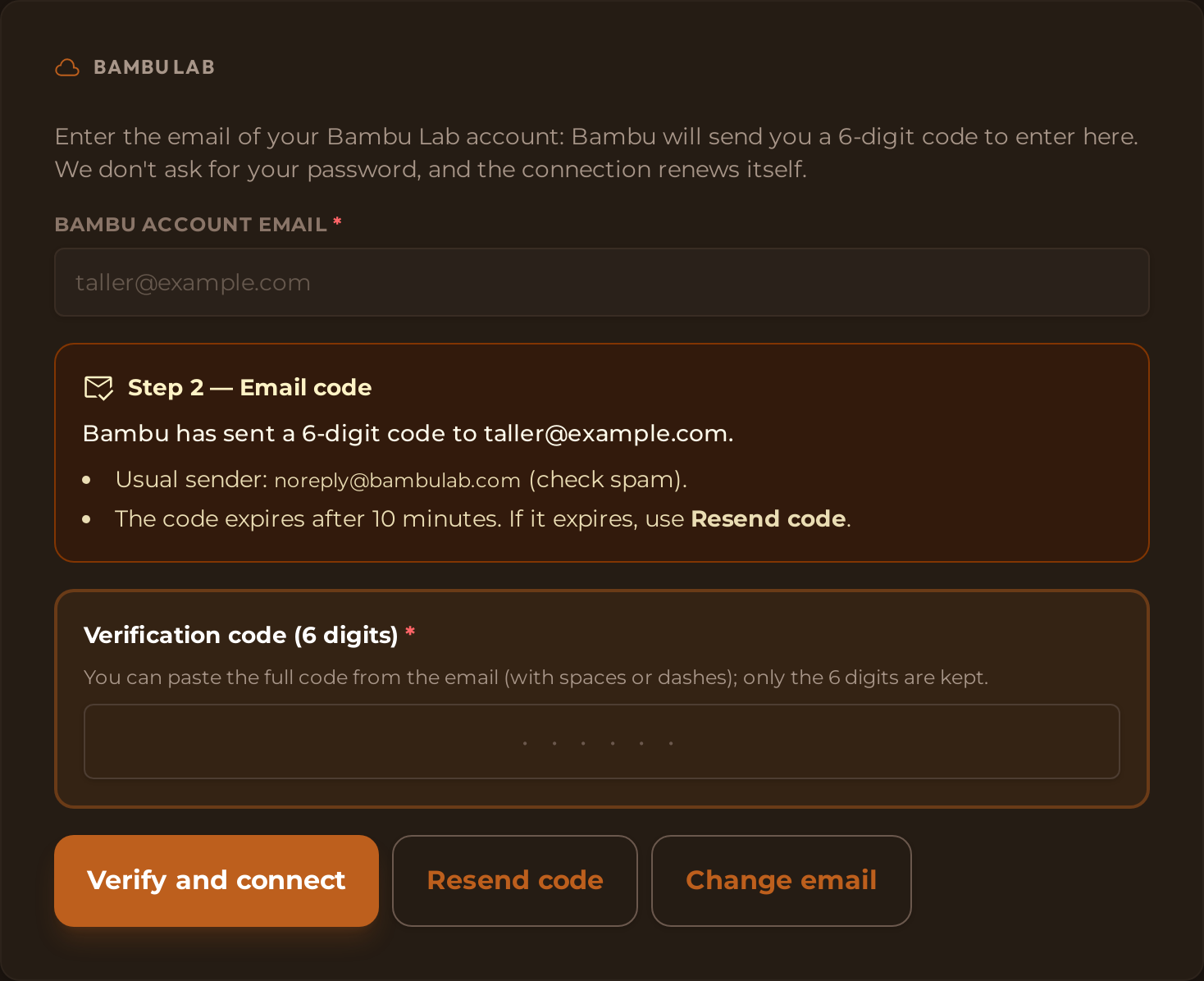
Bambu will send you a 6-digit code from noreply@bambulab.com (the email
arrives in English). If you can't see it, check your spam folder: it often
ends up there. Enter it on the same
screen and click Verify and connect.
Three details will save you a second attempt:
- The code expires after 10 minutes and only the latest one works. If it runs out, click Resend code.
- You can paste it exactly as it arrives: any spaces or dashes are removed automatically.
- If you typed the wrong email, click Change email.
Once it's accepted, you'll see Account verified and connected.
Your printers are already in
You don't have to add them one by one: every printer on that account shows up on its own in the Printers tab, each with its name and serial number.
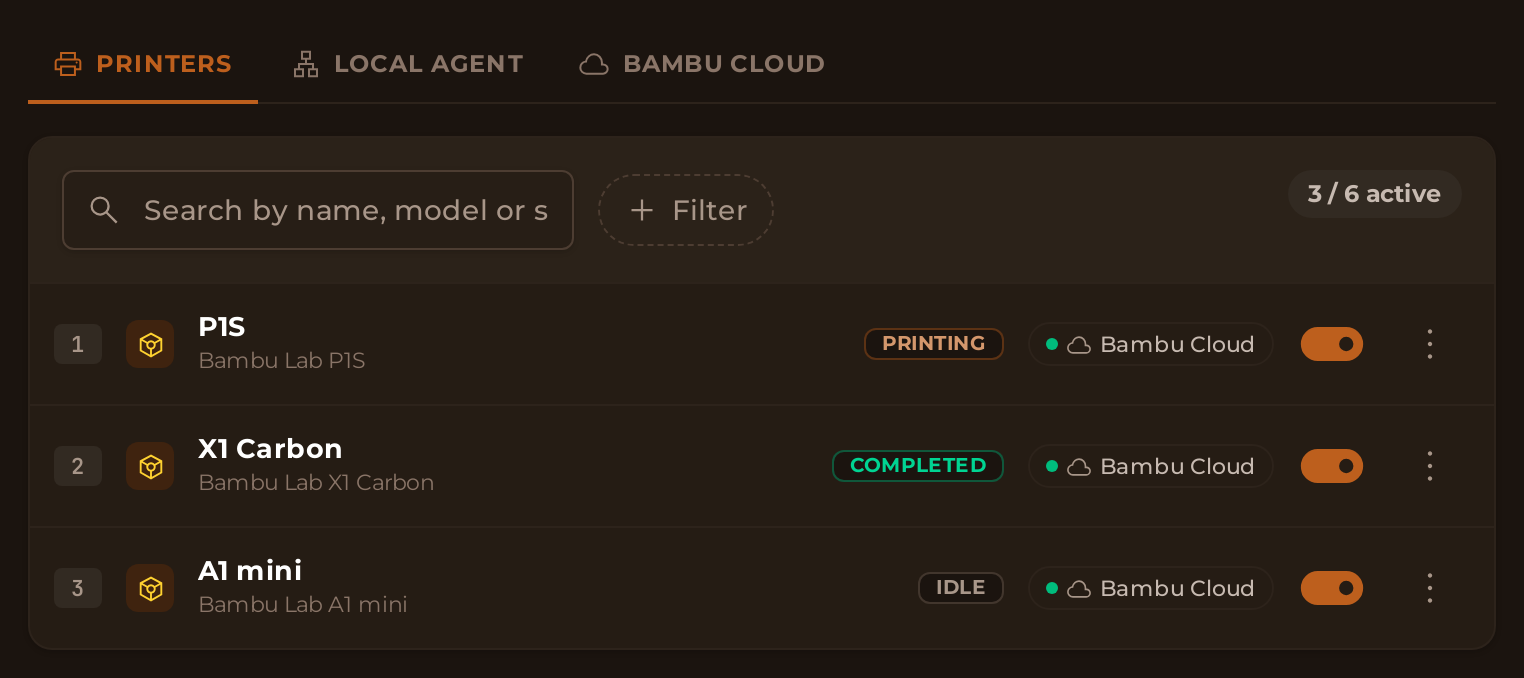
At the top you'll see a counter like 3 / 6 active: these are the printers your
plan includes. Use the switch on each row to activate or deactivate whichever
ones you like. A deactivated printer doesn't count towards the limit, but keeps
its whole history. And if you connect an entire fleet and there aren't enough
places for all of them, the ones that don't fit come in deactivated instead of
going over your plan's limit.
What you can't do through the cloud
It's worth knowing this from the start, so you don't go looking for options that don't exist:
- It's read-only. Through the cloud you can't pause, resume or cancel from BolloPrint: Bambu only accepts those commands over your local network, with the printer in a specific mode. We cover that at the end.
- There's no camera. You do see the job's slicer image, which is a preview, not what's happening inside the machine.
- It depends on two internet connections, yours and Bambu's. If either one fails, the printer shows as disconnected even when it's printing normally.
- The Bambu session lasts 90 days, but it renews itself: BolloPrint renews it before it expires, so you don't have to sign in again. Only if Bambu closes it on its own do we let you know on screen, and all it takes is a new code.
And one thing that applies to every connection method: BolloPrint doesn't send jobs to print. You still send the file from your slicer; BolloPrint reads what the machine is doing and logs it.
Common problems
What if I sign in to Bambu with Google or Apple?
Type the email of that Google or Apple account: the code arrives there just the same. You no longer need to create a password.
Why does it say there's no account with that email?
If you see "There's no Bambu Lab account with that email.", the email isn't the one on your Bambu account: Bambu still sends the code, but rejects it when you enter it. Check which one you use to sign in to their app and click Change email.
Do I have to reconnect the account every so often?
No. The session lasts 90 days and BolloPrint renews it by itself before it expires. If Bambu ever closes it on its own, you'll see "Session expired" and a Sign in again button: request a new code and you're done, without unlinking anything.
What if the code doesn't arrive or isn't accepted?
If it doesn't arrive, check your spam folder and click Resend code. If it isn't accepted, it has most likely expired or it isn't the latest one you requested: request another one and paste it in whole.
If you need more: the local agent
The cloud shows you all the information, but it doesn't let you act on the printers, and it only exists for Bambu Lab. If you need more, the option is the local agent: a small program you install on a computer in your workshop that talks to the printers over your own network. One is enough for the whole fleet, and it gives you:
- almost every brand: Prusa, Elegoo, Anycubic, FlashForge, Snapmaker and anything running Klipper (QIDI, Sovol, Voron…);
- camera, live and with a final photo saved for every print;
- pause, resume and cancel from BolloPrint, without walking over to the machine;
- resilience to internet outages: it keeps reading your printers and sends everything once the connection is back.
💡 To send commands to a Bambu
The printer has to be in LAN Mode and in Developer Mode. Both are turned on from its screen, and the second one disconnects it from Bambu Cloud: from then on you'll see it only through the agent.
We explain it step by step in connecting your printers over your own network.
If you have any questions, write to us from the contact page or on our Discord.
Enjoy having all your printers on a single screen.
Related documentation
- Connecting printers: the two ways to do it and which one suits you
- Cloud printers: the full reference for this screen
- Compatible printers: look up your model here
- Connection types: what each type of printer allows